Contenido
¿Cuál debería ser el método recomendado para transferir fotos de Samsung a una PC, especialmente cuando necesita mover una gran cantidad de imágenes desde su teléfono Samsung Galaxy a una computadora?
Si simplemente copia y pega las fotos de Android por correo electrónico o mensajería instantánea, podría perder o duplicar algunas fotos importantes. El artículo comparte siete métodos para... transferir fotos de Samsung a PC o Mac eficientemente.

| Método | La mejor opción para | Requisitos | Velocidad de transferencia | Ventajas | Contras |
| Aiseesoft MobieSync | Transferencias selectivas, transferencia masiva de archivos, copias de seguridad de datos de Android, uso multiplataforma | Mac/PC + USB + Software | Muy rapido | Transferir datos entre iOS, Android y computadora Transferencia selectiva Alta velocidad La conversión de archivos | Requiere la instalación de software de terceros |
| Cable USB | Todos Transferencia de archivos común | PC con Windows + USB | Muy rapido | Acceso directo a archivos Rápido, estable y confiable No se necesita internet | Requiere un cable Puede ser menos conveniente |
| SD Card | Usuarios con almacenamiento expandible | Lector de tarjetas + PC | Rápido | Acceso directo a la tarjeta SD, no requiere el teléfono. | Requiere un lector de tarjetas |
| Google Fotos/Drive | Usuarios de Mac, comodidad inalámbrica, transferencias ocasionales | Aplicación Google Drive/Fotos + Internet | Variable | Inalámbrico, accesible desde cualquier lugar | Requiere conexión a internet El almacenamiento gratuito es limitado |
| Samsung Smart Switch | Usuarios de Samsung Copias de seguridad completas del sistema | Aplicación Smart Switch + cable USB | Rápido | Herramienta oficial de Samsung Ideal para copias de seguridad y restauraciones completas. | Exceso de recursos para transferencias de fotos sencillas |
| Nube de Samsung | Acceder a las copias de seguridad en la nube | Cuenta Samsung + Internet | Variable | Integrado en los teléfonos Samsung | Se está eliminando gradualmente en favor de otros servicios en la nube. |
| Elegir | Propietarios de dispositivos Samsung muy antiguos | Aplicación Kies + Internet | Lenta | Admite dispositivos heredados | Obsoleto, reemplazado por Smart Switch |
Si desea encontrar un método fácil y rápido para agregar fotos de Samsung a su computadora, puede usar Aiseesoft MobieSyncEstá especialmente diseñado para gestionar y transferir fácilmente todo tipo de datos móviles. Puedes transferir diversos archivos, como fotos, vídeos, canciones, contactos, etc., desde tu teléfono Samsung Galaxy a tu ordenador.
Descarga
 100% Seguro. Sin anuncios.
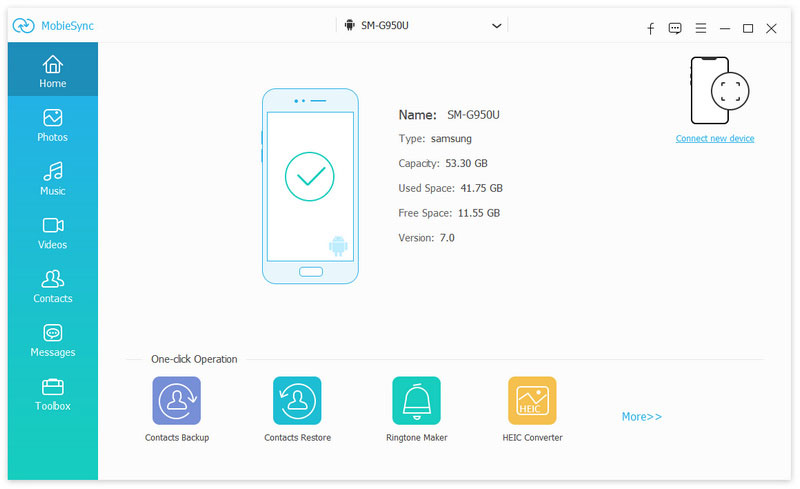
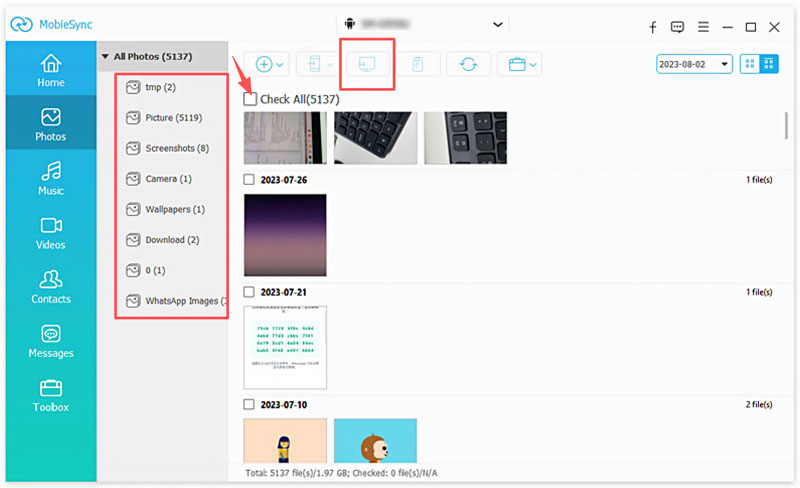
Si quieres añadir fotos a tu dispositivo Samsung, puedes hacer clic en "Añadir archivo(s)" en el menú superior para añadir archivos de imagen. Además, MobieSync te permite transferir datos entre un teléfono Samsung y un iPhone.
El USB es uno de los métodos más sencillos para transferir fotos de un Samsung a una PC. Además, es probable que funcione con la mayoría de los teléfonos Samsung Galaxy. Sin embargo, este método no es válido para sincronizar fotos almacenadas en otras carpetas.
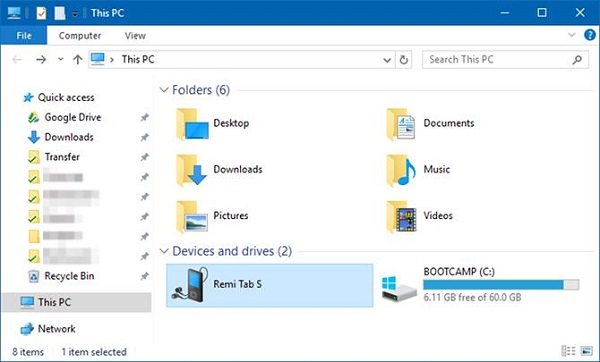
Puedes usar una tarjeta micro SD para ampliar la capacidad de almacenamiento de tu teléfono Samsung. También es una buena manera de transferir videos y fotos de un teléfono Galaxy a una PC. Solo necesitas un lector de tarjetas SD.
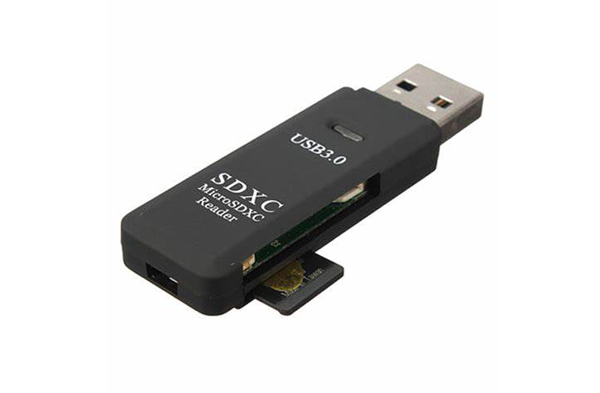
Nota: Se recomienda abrir su software antivirus al transferir imágenes desde su Samsung a su PC.
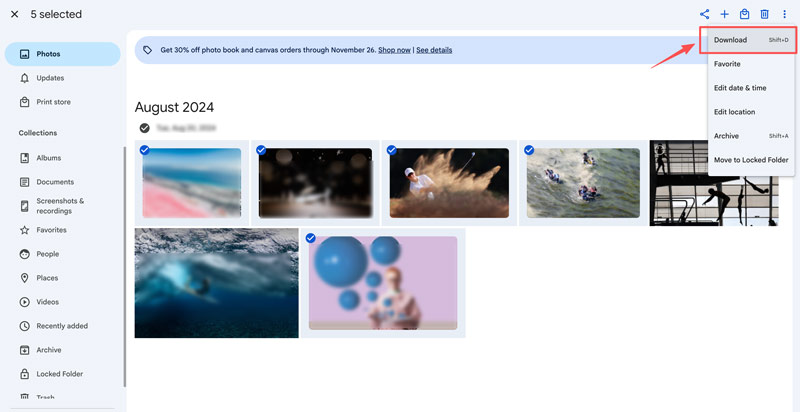
Google Fotos Es una buena solución que puedes considerar. Ofrece 15 GB de almacenamiento gratuito para cada cuenta si no te importa la resolución. Aquí tienes el método detallado para transferir fotos de Samsung a Mac mediante Google Fotos. También puedes encontrar otros métodos para transferir fotos de Android a Mac.
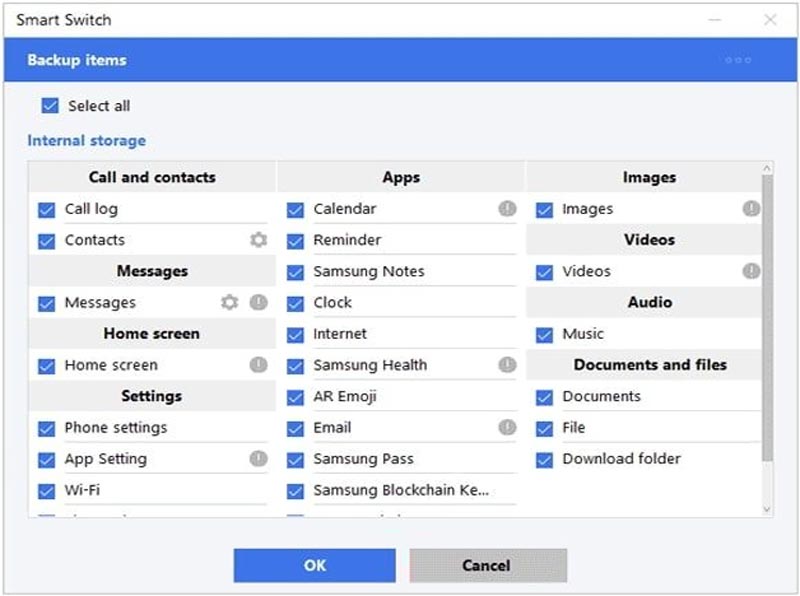
Samsung smart Switch La aplicación es una herramienta oficial conocida por sus eficientes transferencias entre teléfonos. También te permite transferir varias fotos de un teléfono Samsung a una computadora para realizar copias de seguridad y restaurarlas.
Nube de Samsung Está integrado de forma nativa en los dispositivos Samsung y ofrece un servicio de copias de seguridad en la nube similar a iCloud para usuarios de iPhone. Cabe destacar que Samsung Cloud ha sido reemplazado por Microsoft OneDrive.
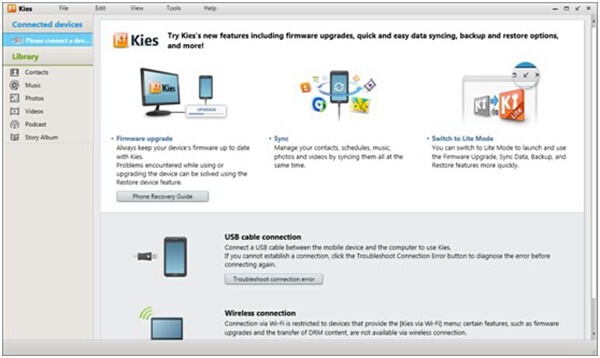
Samsung Kies Anteriormente era la solución predeterminada para sincronizar fotos de dispositivos Samsung con computadoras. Está disponible para teléfonos y tabletas lanzados antes del Galaxy Note III. Sin embargo, no funciona con teléfonos Samsung modernos con una versión más reciente de Android.
Conclusión
Basándose en el tutorial anterior, puede obtener los 7 enfoques principales para transferir fotos desde Samsung a PC o computadora MacSimplemente conecta tu teléfono Samsung a una computadora con un cable USB y podrás transferir las fotos directamente. Por supuesto, puedes sincronizar fotos con un servicio en la nube. Smart Switch también es una buena solución para transferir imágenes de un dispositivo Samsung a una computadora.
 El método más simple sobre cómo transferir fotos de Android a Mac
¿Quieres transferir fotos de Android a Mac? Puede aprender cómo transferir fotos/imágenes de Android a Mac en esta publicación.
 Papelera de reciclaje de Android - Restaurar archivos desde la Papelera de reciclaje de Android
¿Hay una papelera de reciclaje de Android en el teléfono móvil Anroid? En realidad no. Pero, ¿cómo restaurar archivos borrados en Android? Esta publicación es adecuada para ti.
 ¡Pérdida de datos evitada! Cómo hacer una copia de seguridad de su teléfono Android en la PC
¿Cómo hacer una copia de seguridad de su teléfono Android en la PC? Esta guía tiene como objetivo mostrarle varias formas útiles para ayudarlo a hacer fácilmente una copia de seguridad de Android en una PC con Windows.
Transferir archivo de Android
Transfiere fotos entre móviles SamsungHerramientas de transferencia de Samsung y iPhoneTransfiere SMS de Android a iPhone fácilmenteTransferir fotos de Android a iPhoneTransfiere SMS de Android a iPhone fácilmenteTransfiere música de Android a iPhoneTransferir contactos de BlackBerry a iPhoneTransferir contactos de Samsung a iPhoneCopia de seguridad de SMS de Android a la computadoraTransferir fotos de Samsung a la computadoraEl administrador de datos profesional de iPhone/Android y la transferencia para transferir varios archivos entre el teléfono iOS/Android y la computadora y entre dos teléfonos móviles en 1 clic.
100% Seguro. Sin anuncios.

*Campo requerido
*Por favor ingrese un correo electrónico válido