El mejor convertidor de vídeo con IA definitivo
 100% Seguro. Sin anuncios.
100% Seguro. Sin anuncios.
Contenido
Como contenedor de estándar abierto, MKV (Matroska) es uno de los formatos favoritos de los cinéfilos, ya que admite múltiples pistas de audio y subtítulos sin comprometer la calidad. Sin embargo, esta complejidad suele generar problemas de compatibilidad con reproductores multimedia, software de edición y plataformas móviles estándar.
Para garantizar una reproducción fluida, existe una demanda masiva de convertir MKV a MP4El estándar universal. Ya sea que necesites subir videos a la web, editarlos en suites profesionales en PC/Mac o disfrutar de películas en iPhone, Android o tabletas, cambiar a MP4 te ofrece el equilibrio perfecto entre alta calidad y amplia accesibilidad.
| Converter | La mejor opción para | Speed (Rapidez) | Calidad | Por lotes | Beneficio clave |
| Aiseesoft Video Converter Ultimate | Usuarios profesionales: Tareas de lotes grandes, ultrarrápidas y sin pérdidas | 120X (Rayo) | Sin pérdida (Remux) | Sí (Robusto) | Solución de un solo clic para conversión por lotes de 4K/8K. |
| Freno de mano | Usuarios expertos en tecnología que necesitan codificación profunda de código abierto. | Moderada | Alta | Sí | Totalmente gratuito; permite el ajuste detallado de parámetros. |
| VLC Media Player | Conversiones rápidas y únicas para usuarios que ya lo tienen. | Lenta | Normal | No | No requiere instalación si ya lo usas para reproducir vídeos. |
| FFmpeg | Advanced users who want full control and automation | Muy rápido | Alta | Sí | Maximum control, automation, and zero-loss remuxing |
| Codificador de obturador | Users who want lossless conversion with a GUI | Rápido | Alta | Sí | Simplifies tasks with an intuitive visual workflow |
| Aiseesoft Convertidor de video gratuito en línea | Usuarios que necesitan una herramienta rápida basada en web para archivos medianos. | Alto (Web) | Alta | Limitada | Seguro, limpio y admite archivos más grandes que la mayoría de las herramientas web. |
| CloudConvert | Usuarios que convierten archivos pequeños directamente desde Google Drive. | Basado en servidor | Variable | Limitada | Excelente integración con la nube; sin uso de CPU en su PC. |
| Convertio | Usuarios ocasionales con archivos muy pequeños (<100 MB). | Moderada | Estándar | No | Admite una gran variedad de formatos de archivos raros. |
| FreeConvert | Usuarios que buscan límites de tamaño de archivos altos y gratuitos en línea. | Lenta | Estándar | Limitada | Admite archivos de hasta 1 GB de forma gratuita, pero con muchos anuncios. |
Al convertir archivos de video a otros formatos, es útil conocerlos. Se pueden incluir varias pistas de audio, subtítulos o incluso capítulos en un solo archivo usando el formato contenedor MKV (Matroska Video). MKV conserva bastante bien la calidad del video. Sin embargo, su compatibilidad es limitada en la mayoría de los dispositivos o reproductores multimedia, especialmente en Mac, y en aplicaciones móviles. Por otro lado, MP4 (MPEG-4 Parte 14) es uno de los formatos de video más comunes y reconocidos. MP4 es altamente compatible con la mayoría de los dispositivos, reproductores multimedia y servicios en línea. Un archivo MP4 suele ser más pequeño que un archivo MKV y mantiene una muy buena calidad de video. Los archivos MP4 también son útiles para compartir o transmitir video.
Diferencias clave
| Característica | MKV | MP4 |
| Compatibilidad | Limitado en algunos dispositivos | Ampliamente apoyado |
| Tamaño del archivo | Más grande, de alta calidad | Más pequeño, más eficiente |
| Caracteristicas | Admite múltiples audios, subtítulos y capítulos. | Audio y subtítulos básicos individuales |
| La mejor opción para | Almacenamiento y copia de seguridad de alta calidad | Transmisión, uso compartido y reproducción en dispositivos |
Comprender estas diferencias le ayudará a decidir por qué convertir MKV a MP4 suele ser necesario, especialmente para una reproducción fluida en Mac, iPhone u otros dispositivos.
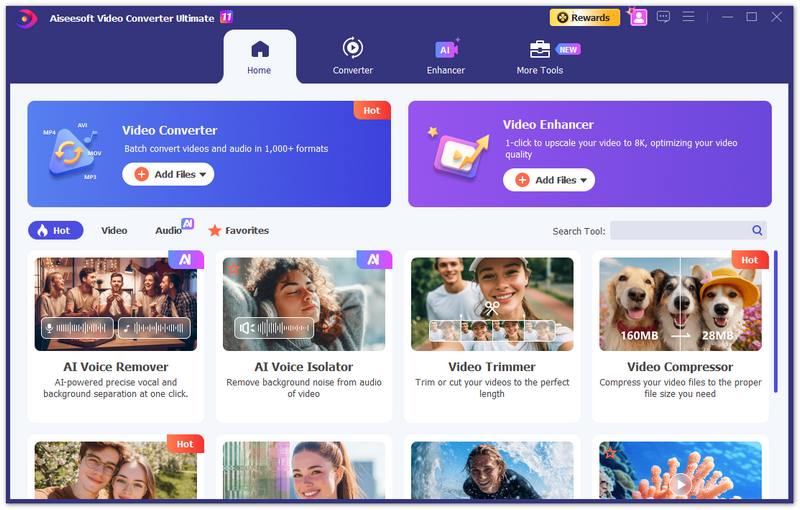
Si necesita una solución que equilibre la velocidad del rayo con la calidad cinematográfica, Aiseesoft Video Converter Ultimate Es el estándar de la industria. A diferencia de las herramientas básicas que suelen bloquear o degradar el metraje, este software está diseñado para gestionar bibliotecas MKV 4K/8K masivas con facilidad. Además de la función principal que te ayuda a convertir formatos de video, este software ofrece funciones adicionales. Por ejemplo, puedes recortar tus videos después de convertirlos de MKV a MP4. También te permite mejorar los efectos de video.
100% Seguro. Sin anuncios.
100% Seguro. Sin anuncios.
Pasos para convertir o remuxear MKV a MP4 con Aiseesoft Video Converter Ultimate:
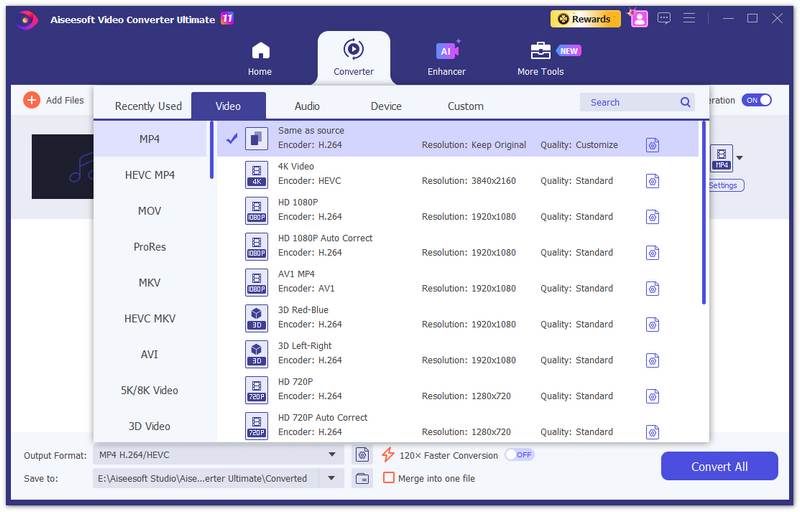
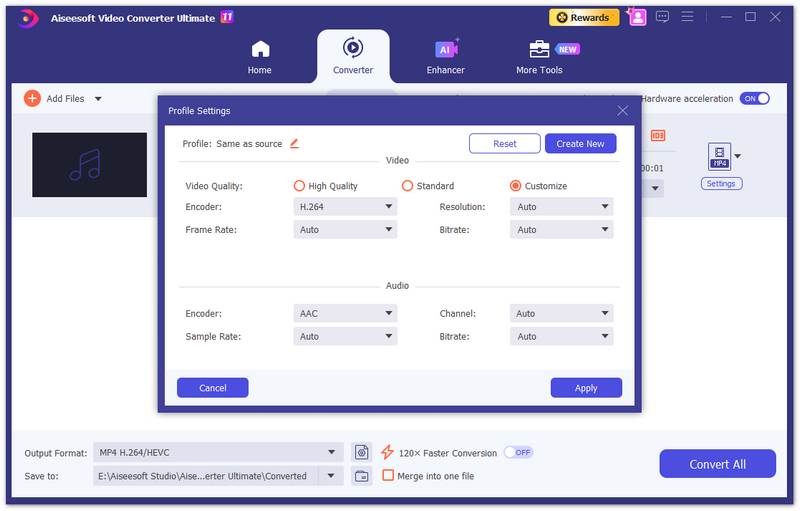
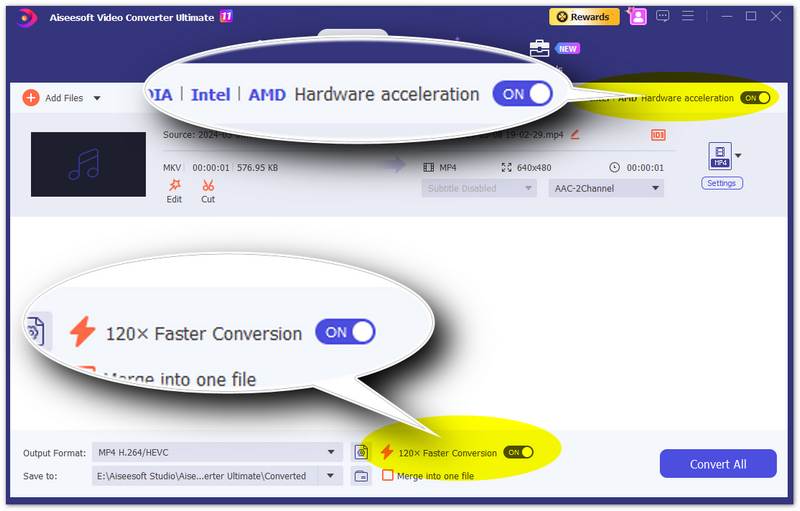
En tan solo unos segundos, los videos MKV originales se convertirán a archivos MP4. Mucha gente presta más atención a la calidad del video después de la conversión de MKV a MP4. Aquí, el mejor software de conversión de MKV a MP4 te promete convertir MKV a MP4 sin perder calidad. Además, la velocidad de conversión es increíblemente rápida, inimaginable.
HandBrake es un transcodificador de calidad profesional. Es ideal para comprimir un archivo o garantizar la compatibilidad con dispositivos específicos como iPhone o Apple TV. Es ideal si tienes un archivo MKV 4K enorme y quieres reducirlo a un MP4 más pequeño para tu teléfono sin que se vea borroso.
Pasos para transformar MKV a MP4 con HandBrake: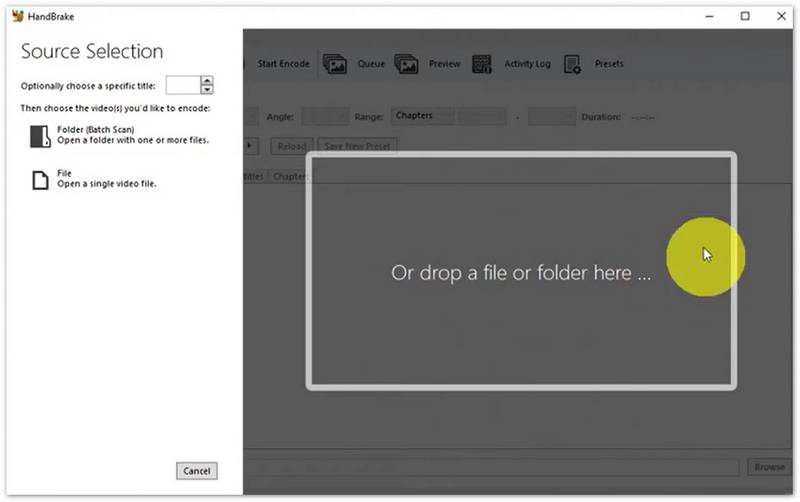
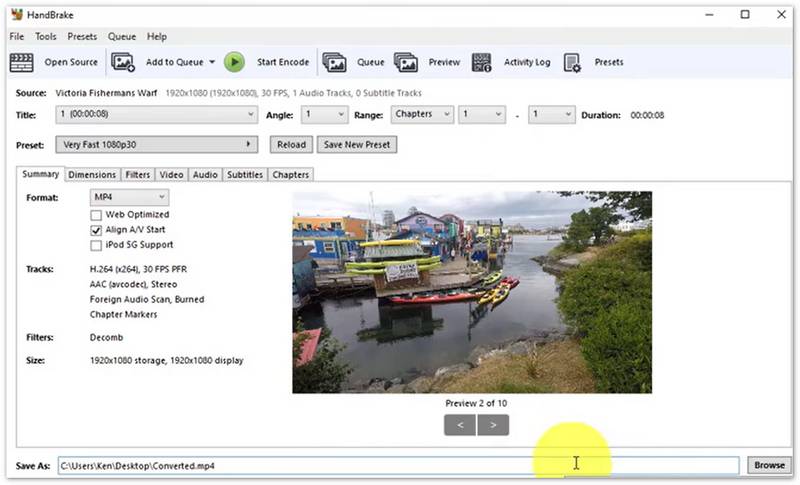
HandBrake siempre recodifica el vídeo. Esto implica que tardará más y consumirá más CPU, pero permite una mejor compresión y velocidades de fotogramas fijas.
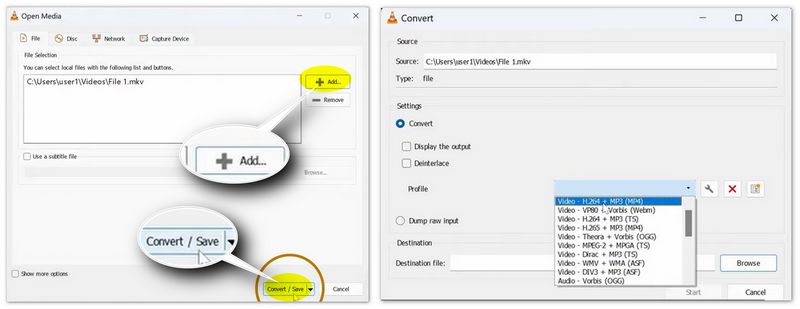
La mayoría de la gente ya tiene VLC instalado. Es ideal para una remultiplexación o conversión rápida sin necesidad de aprender a usar un nuevo software. Si tienes un archivo que no se reproduce en tu televisor y necesitas convertirlo en 60 segundos, puedes probar VLC.
Pasos para convertir MKV a MP4 usando VLC: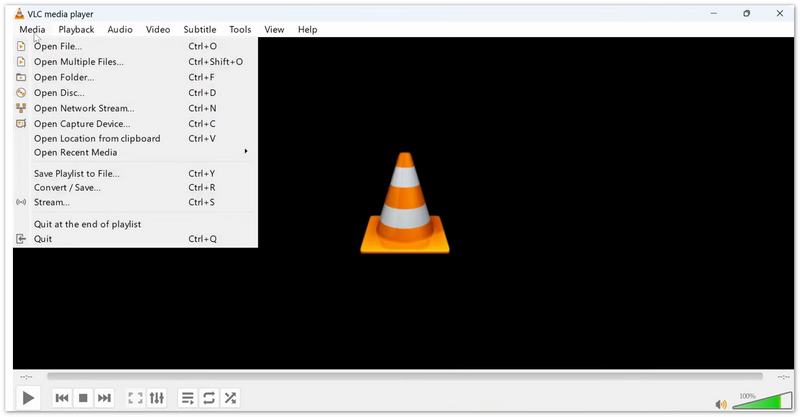
FFmpeg is a free, open-source, command-line tool designed to handle multimedia files. It is considered the industry standard for video transcoding, remuxing, and streaming because it supports nearly every codec and format in existence. It is exceptionally fast when remuxing because it copies the original audio and video streams without re-encoding.
Steps to convert MKV to MP4 with FFmpeg (Remuxing with no quality loss):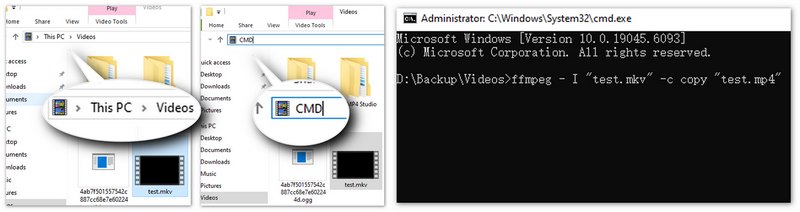
Shutter Encoder is a free, open-source converter designed for both video professionals and enthusiasts. Built on top of FFmpeg, it provides a user-friendly graphical interface for incredibly complex tasks. Its biggest strength is its ability to perform "Rewrapping" (Remuxing), which simply takes the video and audio streams out of the MKV container and puts them into an MP4 container without re-encoding the actual video data. This results in zero quality loss and extremely fast processing times.
Steps to change MKV to MP4 with Shutter Encoder: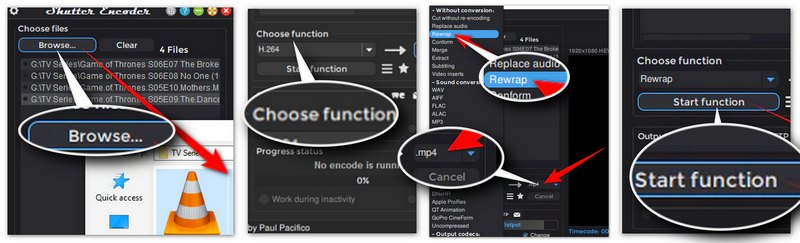
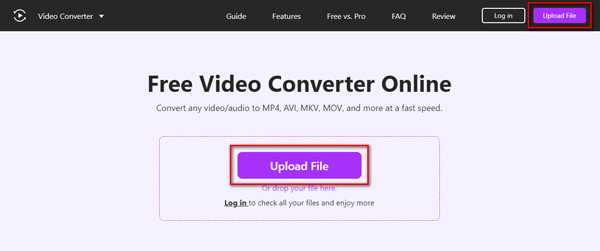
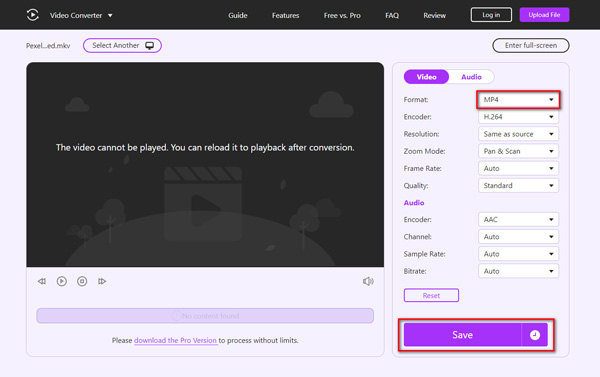
Aiseesoft Convertidor de video gratuito en línea Es una herramienta en línea gratuita que te permite convertir rápidamente cualquier video/audio a MOV, MP4, AVI, MKV y más. Con ella, puedes convertir archivos de video en la mayoría de los dispositivos y redes sociales. También te permite ajustar la tasa de bits, la relación de aspecto, la resolución y más. Aquí tienes algunos pasos para convertir MKV a MP4 con Video Converter Online.
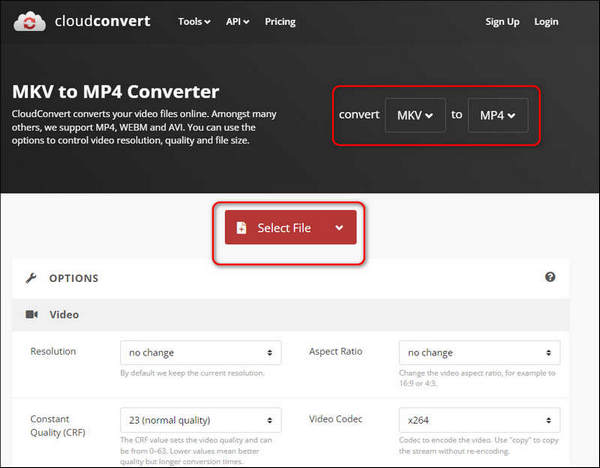
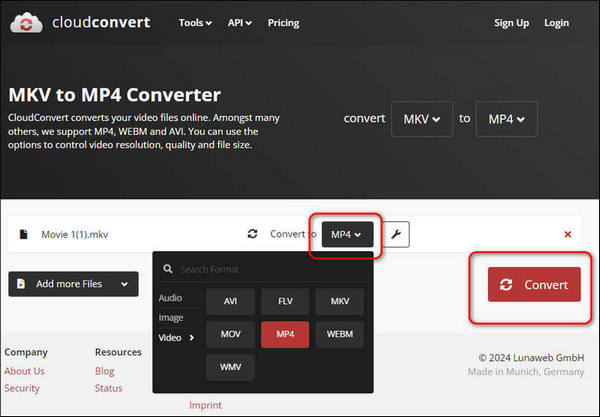
CloudConvert es una herramienta en línea eficaz para convertir tus videos. Es compatible con MP4, MKV, WEBM y AVI. Con él, también puedes ajustar la resolución del video, el tamaño del archivo, etc. Aquí tienes algunos pasos para convertir MKV a MP4 con CloudConvert.
Convertio es una herramienta gratuita que te permite convertir video y audio rápidamente. Es compatible con la mayoría de los formatos, incluyendo MP4, MKV, MOV, AVI, etc. Puedes usarla siempre que tengas un navegador. Estos son los pasos para convertir MKV a MP4 con Convertio.
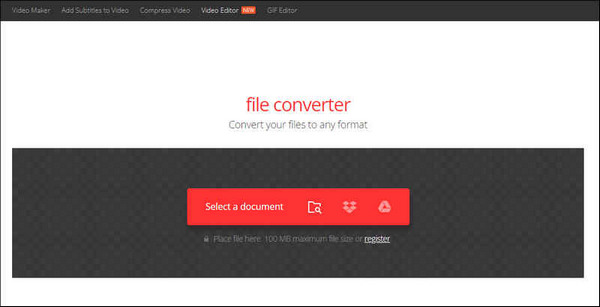
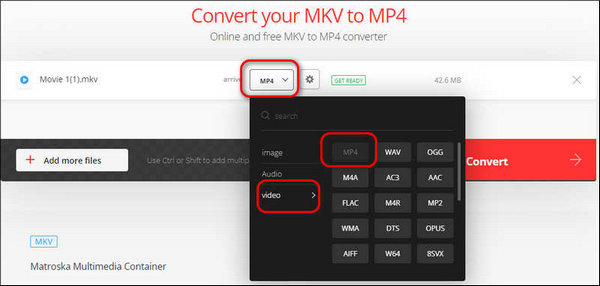
FreeConvert es otra herramienta en línea que puedes usar para convertir videos. Es fácil de usar: con solo unos clics, podrás convertir tu video sin problemas. Es compatible con la mayoría de los formatos multimedia, como MP4, MKV, AVI, OGG, MP2, MID y más. Aquí tienes algunos pasos para convertir MKV a MP4 con FreeConvert.
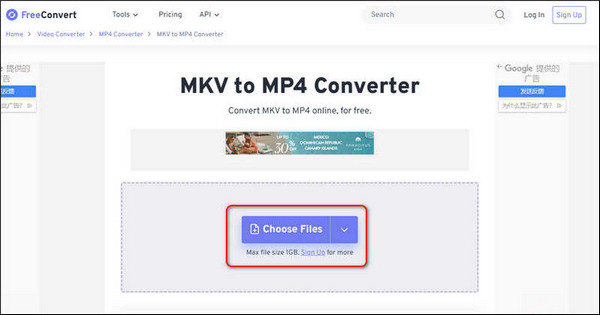
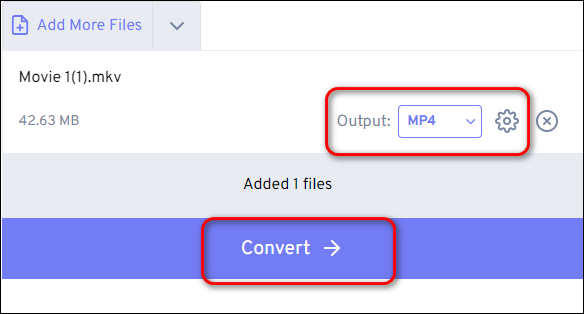
¿Por qué no hay sonido después de convertir MKV a MP4?
Esto suele ocurrir debido a una discrepancia en el códec de audio. Los archivos MKV suelen usar audio DTS o AC3, que algunos reproductores MP4 no admiten. Para solucionarlo, asegúrese de que su conversor esté configurado para convertir audio a AAC o MP3, que son los formatos más compatibles con archivos MP4.
¿La conversión de MKV a MP4 pierde calidad?
No si usa Remuxing (también conocido como "Copia de Stream"). Dado que MKV y MP4 son solo contenedores, herramientas como Aiseesoft Video Converter Ultimate pueden simplemente intercambiar el contenedor sin recodificar el video. Si el software fuerza la "Transcodificación", podría notar una ligera disminución en la calidad, pero usar una tasa de bits alta hará que la diferencia sea casi imperceptible.
¿Es MP4 mejor que MKV?
En cuanto a la compatibilidad, el formato MP4 se reproduce ampliamente en la mayoría de los reproductores multimedia. El formato MKV es más popular para convertir archivos Blu-ray y DVD. Para una mejor comparación, puede consultar la calidad del vídeo en MKV frente a MP4.
Conclusión
Conversión de MKV a MP4 No tiene por qué ser una elección entre velocidad y calidad. Si bien herramientas gratuitas como VLC y HandBrake son ideales para uso ocasional, Aiseesoft Video Converter Ultimate ofrece la experiencia más confiable, sin pérdidas y ultrarrápida para tareas por lotes. Ya sea que esté optimizando videos para su iPhone o liberando espacio en su disco duro, esta solución integral garantiza un resultado perfecto en todo momento. ¿Listo para ahorrar tiempo? ¡Descargue la prueba gratuita y experimente una conversión 120 veces más rápida hoy mismo!
100% Seguro. Sin anuncios.
100% Seguro. Sin anuncios.
 Cómo convertir VOB a MKV
Este artículo explica cómo convertir archivos VOB a MKV usando este poderoso convertidor de VOB a MKV en pasos.
 Cómo convertir WLMP
¿Tiene muchos archivos de Windows Live Movie Project (WLMP) y desea reproducirlos o convertirlos? El convertidor WLMP puede convertir archivos .wlmp.
 Cómo convertir ARF a MP4/WMV
Descargue grabaciones de WebEx y convierta archivos ARF a MP4 fácilmente en esta publicación.
Convertir MKV
1.10 MKV a MP4 en Mac
Video Converter Ultimate es un excelente conversor, editor y potenciador de video para convertir, mejorar y editar videos y música en 1000 formatos y más.
100% Seguro. Sin anuncios.
100% Seguro. Sin anuncios.

*Campo requerido
*Por favor ingrese un correo electrónico válido